
Most hacked WordPress sites are not targeted by a person. Instead, bots scan millions of sites for known weak spots. If your site has one, it gets found. This WordPress security checklist closes the gaps those bots look for.
I have cleaned up and hardened many WordPress sites, including fixing XSS and SQL injection holes in custom code. The steps below are the ones I apply first. Most take minutes.
WordPress security for accounts and logins
1. Use strong, unique passwords
First, every admin needs a long, unique password from a password manager. Reused passwords are the easiest way in, because leaked lists are tried automatically.
2. Turn on two-factor authentication
Two-factor authentication stops most login attacks, even when a password leaks. So enable it for every account that can publish or install plugins.
3. Limit login attempts
Bots try thousands of passwords per hour. Therefore, block an IP address after a few failed attempts, or put the login page behind a firewall rule.
4. Give people the lowest role they need
Writers do not need Administrator access. Instead, use the Author or Editor role, and remove accounts of people who left.
Updates and plugins: the core of WordPress security
5. Keep core, themes and plugins updated
Most attacks use flaws that were fixed months ago. So update weekly, or turn on automatic updates for minor releases and trusted plugins. Test bigger updates on a staging copy first.
6. Remove unused plugins and themes
A deactivated plugin can still be attacked if its files are on the server. Therefore, delete anything you do not use, including old default themes.
7. Install plugins only from trusted sources
Use the official plugin directory or well-known vendors. However, never install "nulled" premium plugins. They often contain hidden backdoors.
Server and file settings to secure a WordPress site
8. Use HTTPS to secure your WordPress site
An SSL certificate encrypts logins and form data. Most hosts and Cloudflare provide one for free. Next, redirect all HTTP traffic to HTTPS.
9. Disable file editing in the dashboard
If an attacker gets into the admin, the built-in editor lets them change PHP files directly. Add this line to wp-config.php to turn it off:
define( 'DISALLOW_FILE_EDIT', true );10. Set correct file permissions
Folders should usually be 755 and files 644. In addition, protect wp-config.php with stricter permissions, such as 600 or 640, depending on your host.
11. Add a web application firewall
A firewall blocks common attacks before they reach WordPress. Cloudflare, Wordfence or your host's firewall all work. As a result, your server also handles less bad traffic.
Backups and monitoring for WordPress security
12. Keep daily, off-site backups
In short, backups are your undo button. Store them away from the server, keep at least 30 days and test a restore twice a year. A backup you cannot restore is not a backup.
13. Monitor for changes and malware
Then use a security plugin or service that scans files and alerts you about changes. Also, watch Google Search Console. It warns you if Google finds malware or spam on your site.
Secure custom code on your WordPress site
Custom themes and plugins are where I find the most serious holes. In fact, two flaws come up again and again: cross-site scripting (XSS) and SQL injection.
14. Escape output to prevent XSS
XSS happens when user input is printed to the page without escaping. An attacker can then run scripts in your visitors' browsers. Fortunately, the fix is simple: escape late, right where you print.
echo esc_html( $title );
echo '<a href="' . esc_url( $link ) . '">';
15. Prepare every database query
SQL injection happens when user input is placed straight into a query. Always use $wpdb->prepare() instead:
$wpdb->get_results( $wpdb->prepare(
	"SELECT * FROM {$wpdb->posts} WHERE post_author = %d",
	$author_id
) );
In addition, check a nonce and the user's capability before any action that changes data. My guide to building a WordPress plugin explains these habits in more detail.
What to do if your site is already hacked
First, take a full backup of the hacked site for evidence. Then change every password, including hosting and database ones. Next, restore a clean backup or reinstall core files, and remove unknown admin users. Finally, find and fix the hole that let the attacker in, or it will happen again.
How often should you review WordPress security?
Security is a habit, not a project. Still, a simple schedule keeps it manageable for a busy team.
- Weekly: apply updates and check that backups ran.
- Monthly: review admin users, remove unused plugins and read the security plugin report.
- Twice a year: test a full restore from backup and review custom code changes.
Also, review security right after any big change, such as a new plugin, a redesign or a new developer joining. Because most problems start with a change, this one habit catches a lot. Finally, write the schedule down, so it does not depend on one person remembering it.
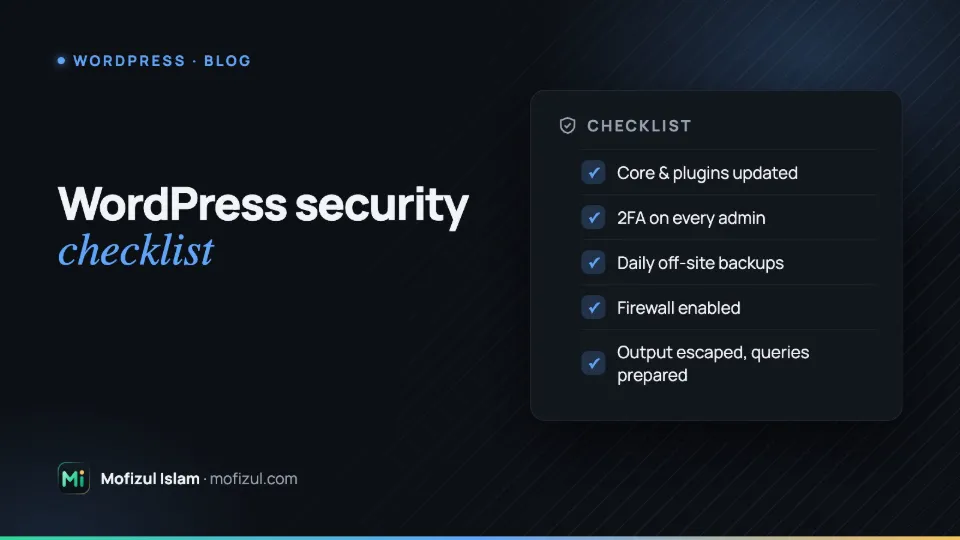
Your WordPress security checklist in short
- Strong passwords, two-factor authentication and limited roles.
- Weekly updates and no unused or nulled plugins.
- HTTPS, no file editing, correct permissions and a firewall.
- Daily off-site backups and malware monitoring.
- Escaped output and prepared queries in custom code.
Security is not a one-time task, but this WordPress security checklist covers the risks that matter most. Want an expert to review your site or custom plugins? Get in touch and I will take a look. You can also see how I can help.