
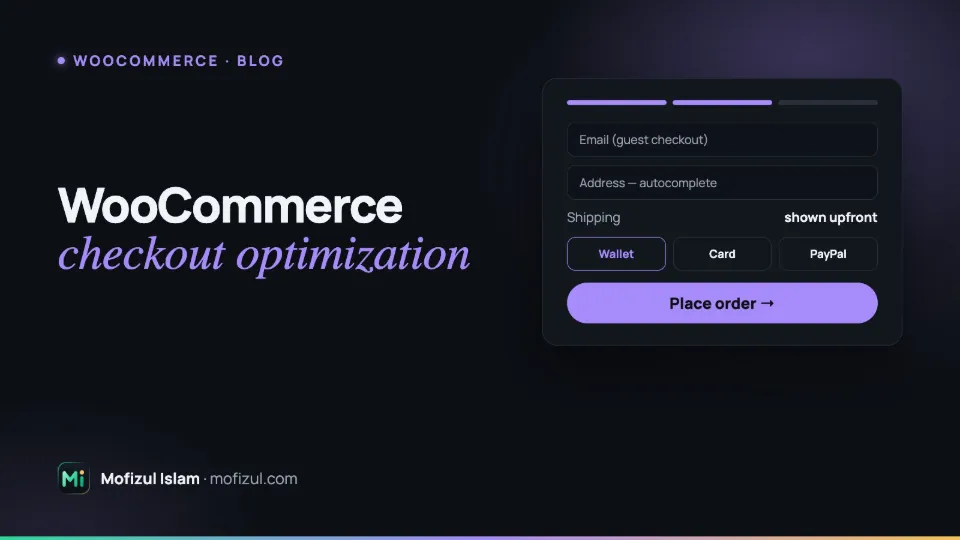
Short answer: WooCommerce checkout optimization means showing all costs early, allowing guest checkout, removing unneeded fields, offering trusted payment methods and keeping the page fast on mobile. Then recover abandoned carts and measure every change.
The checkout is where a visitor becomes a customer. Yet many stores lose a large share of shoppers right there. Small problems, such as too many fields or a surprise shipping cost, are enough to make people leave. WooCommerce checkout optimization fixes those problems one by one.
Here are the eleven changes I make first on client stores. Most of them need no custom code at all.
Why shoppers abandon the checkout
Research from the Baymard Institute shows the same reasons again and again. Extra costs appear too late, account creation is forced, the process feels long, or the site does not feel trustworthy. Therefore, good WooCommerce checkout optimization targets each of these.
1. Show all costs early
Surprise shipping fees are the top reason people leave. So show shipping costs, or a calculator, on the product and cart pages. If you can, offer a free shipping threshold and display progress toward it.
2. Allow guest checkout
Meanwhile, forcing an account adds friction. Instead, allow guest checkout, and offer to create an account after the order. You still get the customer's email, and the shopper gets a faster path.
3. Remove unnecessary fields
Every field costs a little patience, so trim them. For example, many stores do not need "Company name" or a second address line. Remove or make optional anything you do not use. Fewer fields usually means more completed orders.
4. Use address autocomplete
Typing a full address on a phone is slow and error-prone. Address autocomplete fills it in after a few letters. As a result, checkout is faster and delivery errors drop.
5. Offer the right payment methods
Naturally, shoppers trust the payment methods they already use. Offer cards, plus wallets such as Apple Pay, Google Pay or PayPal, depending on your market. Express buttons on the product and cart pages can skip most of the checkout entirely.
6. Make the checkout fast
A slow checkout feels risky. Checkout pages cannot be fully cached, so hosting, database speed and lean plugins matter a lot here. My WooCommerce speed optimization guide covers the details.
7. Build trust at the right moment
Place trust signals near the payment button: secure payment badges, a short returns summary and clear contact details. In addition, keep the design consistent with the rest of the store, so shoppers do not feel they left your site.
8. Design the WooCommerce checkout for mobile
Today, most shoppers browse on phones. Use large tap targets, the right keyboard for each field and a sticky order summary. Then test the full checkout on a real phone, not just a desktop browser.
9. Show clear errors in the WooCommerce checkout
Vague errors make people give up. Instead, show messages next to the exact field, in plain language, and keep everything the shopper already typed.
10. Recover abandoned carts
Even so, some shoppers will always leave. A friendly reminder email, sent an hour or a day later, brings a share of them back. Keep it short and link straight to their cart.
11. Test and measure WooCommerce checkout changes
Track the funnel in analytics: cart, checkout started, payment and order. Then change one thing at a time and compare. This way, you keep what works and undo what does not.
A quick WooCommerce checkout audit
Before changing anything, walk through your own checkout as a new customer. In fact, this simple exercise reveals most problems in about twenty minutes.
- Add a product on your phone, using mobile data rather than Wi-Fi.
- Note when you first see the shipping cost.
- Count the fields you must fill in, and the taps it takes to pay.
- Enter a wrong postcode on purpose, and read the error message.
- Finish the order, then check the confirmation email.
Write down every moment of doubt or delay. Then sort the list by impact: surprise costs and forced accounts first, small design issues last. As a result, you know exactly where to start. Repeat the audit after each change, because one fix can sometimes reveal the next problem.
Also, ask a friend who has never used your store to try it while you watch silently. Their hesitations are often the most valuable findings of all.
The block checkout vs the classic checkout
Newer WooCommerce versions include a block-based checkout. It is cleaner and faster to customize for many stores. However, some older plugins still only support the classic checkout. So check your payment, shipping and field plugins before you switch, and test on a staging site first.
Common questions about optimizing the WooCommerce checkout
Is a one-page checkout better?
Often, yes, because shoppers see the whole task at once. Still, a short multi-step checkout can work well too. Test both if you are unsure.
Do I need a custom plugin?
Usually not. Most of these changes use settings or well-known plugins. Custom code helps only for special rules, such as complex delivery slots or B2B pricing, where no existing plugin fits the way your business works.
How soon will I see results?
Fixes like guest checkout and visible shipping costs often show results within weeks. Nevertheless, measure over a full sales cycle before judging.
Start your WooCommerce checkout optimization
Show costs early, cut fields, allow guests, add trusted payments and keep the page fast. Then measure each change. Together, these steps turn more carts into orders.
Want an expert review of your checkout? Get in touch, or see my eCommerce services.